 Scene Dept.
Teams and shared workspaces
Create a team, invite collaborators, understand roles, and work on shared projects without repeated invitations.
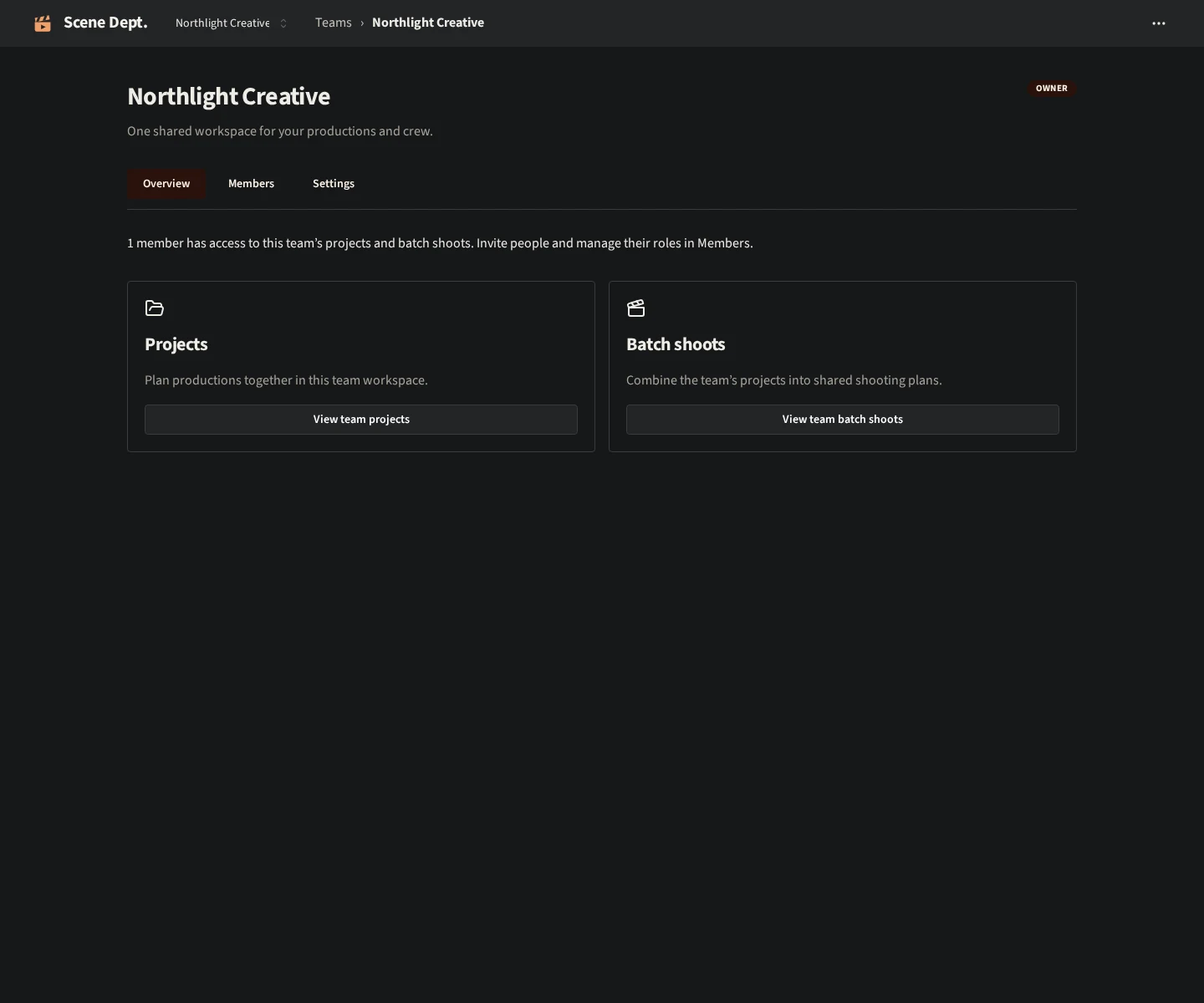
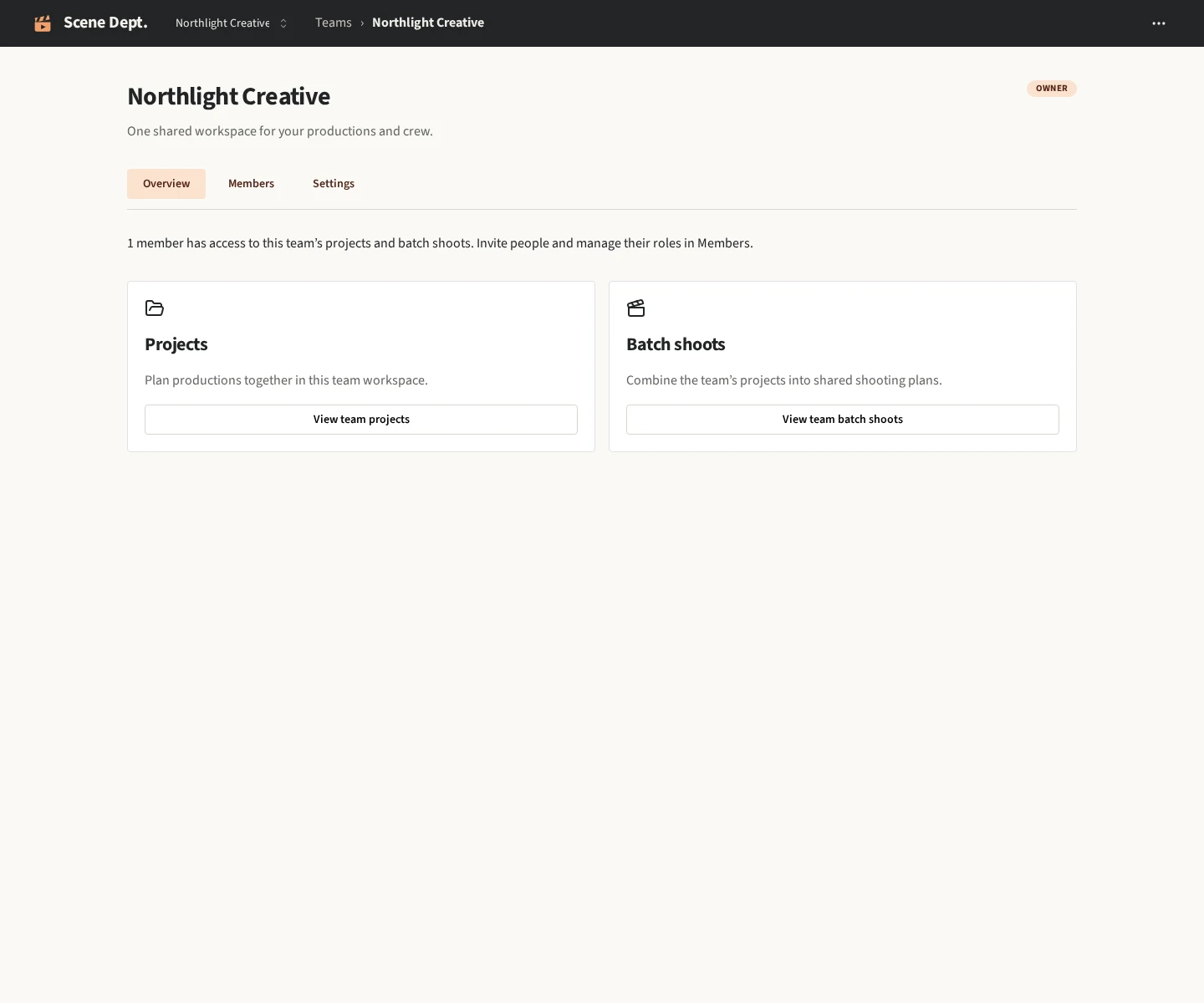
A team owns a shared collection of productions. Invite a collaborator once, then use team projects and batch shoots together. Your personal workspace remains separate.
Create and select a team
- Open Teams from the workspace navigation.
- Choose New team, enter a name, and create it.
- Use the workspace picker to switch between Personal and your teams.
- Create new projects in the selected team workspace.
The workspace choice is remembered in the browser as a navigation preference. Access is checked against current membership. If a saved workspace is no longer available, Scene Dept. falls back to Personal. Remembering a workspace never grants access to it.
Invite collaborators
Open the team, choose Members, and invite someone by email. They can create a public beta account, verify that email, and accept the invitation.
Invitations expire after seven days and can be revoked. A team invitation grants the selected role across the team's projects. To share only one project, use that project's sharing controls instead.
Choose a role
- Owner: manages the team, membership, projects, and project guests. Only the owner can appoint or remove admins.
- Admin: manages members and project administration.
- Editor: creates and edits productions, including shots, capture status, and editor notes.
- Viewer: reads productions and exports reports without editing.
All members can access the team's projects according to their role. Private projects within a team are not currently supported. Users do not have to be team members to receive an explicit invitation to one project.
Move an existing project
In Project settings, choose Move project to a team. You must own the personal project and have editing access to the target team. Review the confirmation before transferring it.
The team becomes the owner. Moving it back to Personal is not currently available. Existing project guests remain, and pending project invitations need to be resent. The project stays with the team if its creator leaves.
Plan a shared shoot
Select the team workspace and open Batch shoots. Pick the team's productions and group compatible setups into a shared shooting plan. Shot capture status and editor notes are saved back to their original projects.
Read the Batch shoots overview for an example.
Membership changes
Removing a member removes their inherited team access, direct grants to that team's projects, and pending team or project invitations. A later explicit project invitation can grant access again.
Membership is checked by the server and refreshed in the app. Removing access cannot retract content someone has already downloaded or exported.
Beta scope
Each public beta account can own one team, join other teams, and create unlimited projects in personal and team workspaces. A team can have up to 10 unique people with write access, including its owner, admins, team editors, and project-specific editors. Pending editor invitations reserve a spot. The same person editing several projects uses one spot. Team viewers and project viewers are unlimited and do not use editor capacity.
Team billing, ownership transfer, and self-service team deletion are not available yet. IgorBox Studio linking and subscriber benefits are future plans, not part of the current team workflow.
Next: plan effects with cues, or return to getting started.