 Scene Dept.
Plan practical effects with cues
Describe effects, link creative passages, assign shots, and bring trigger and reset instructions into the shooting checklist.
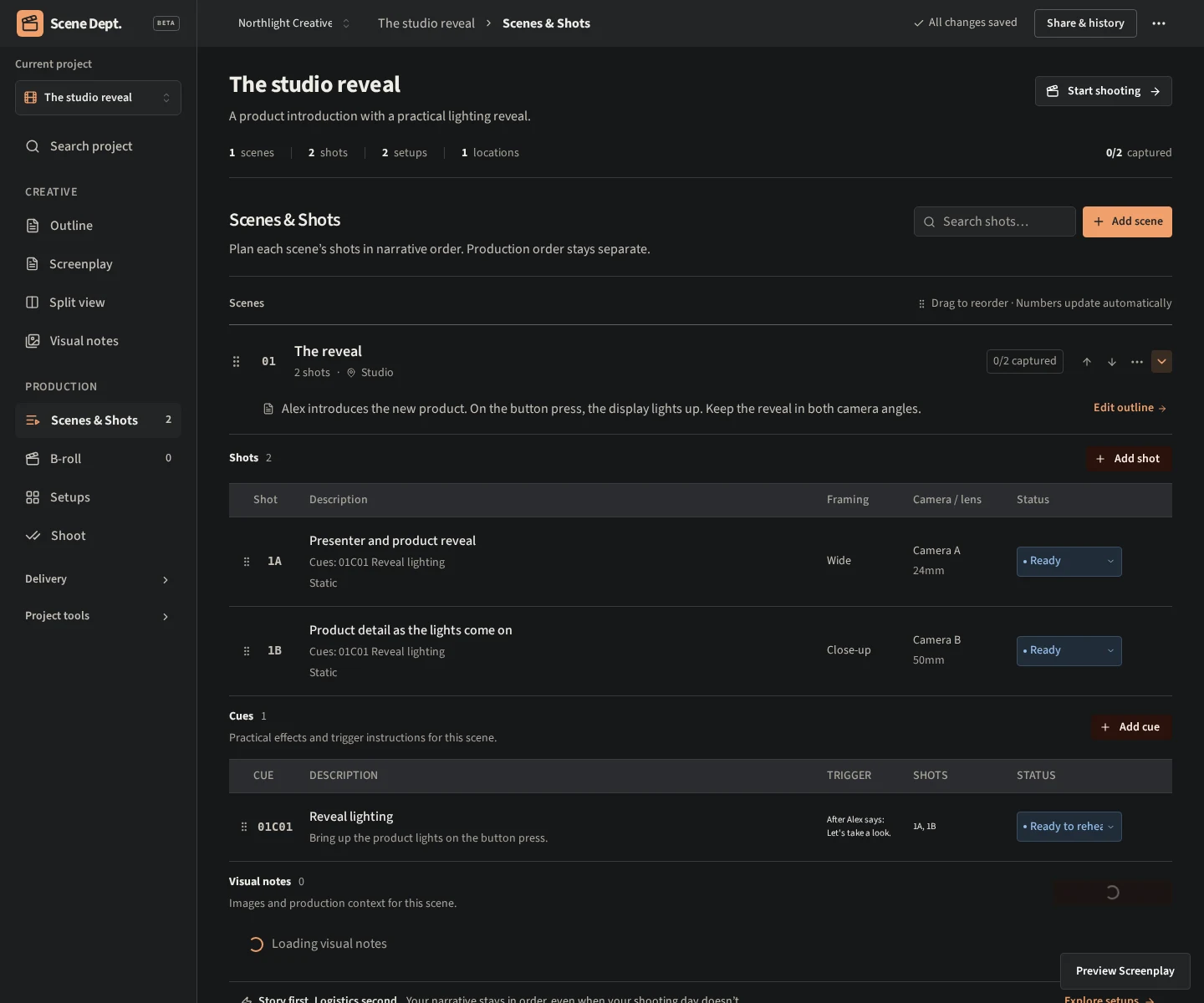
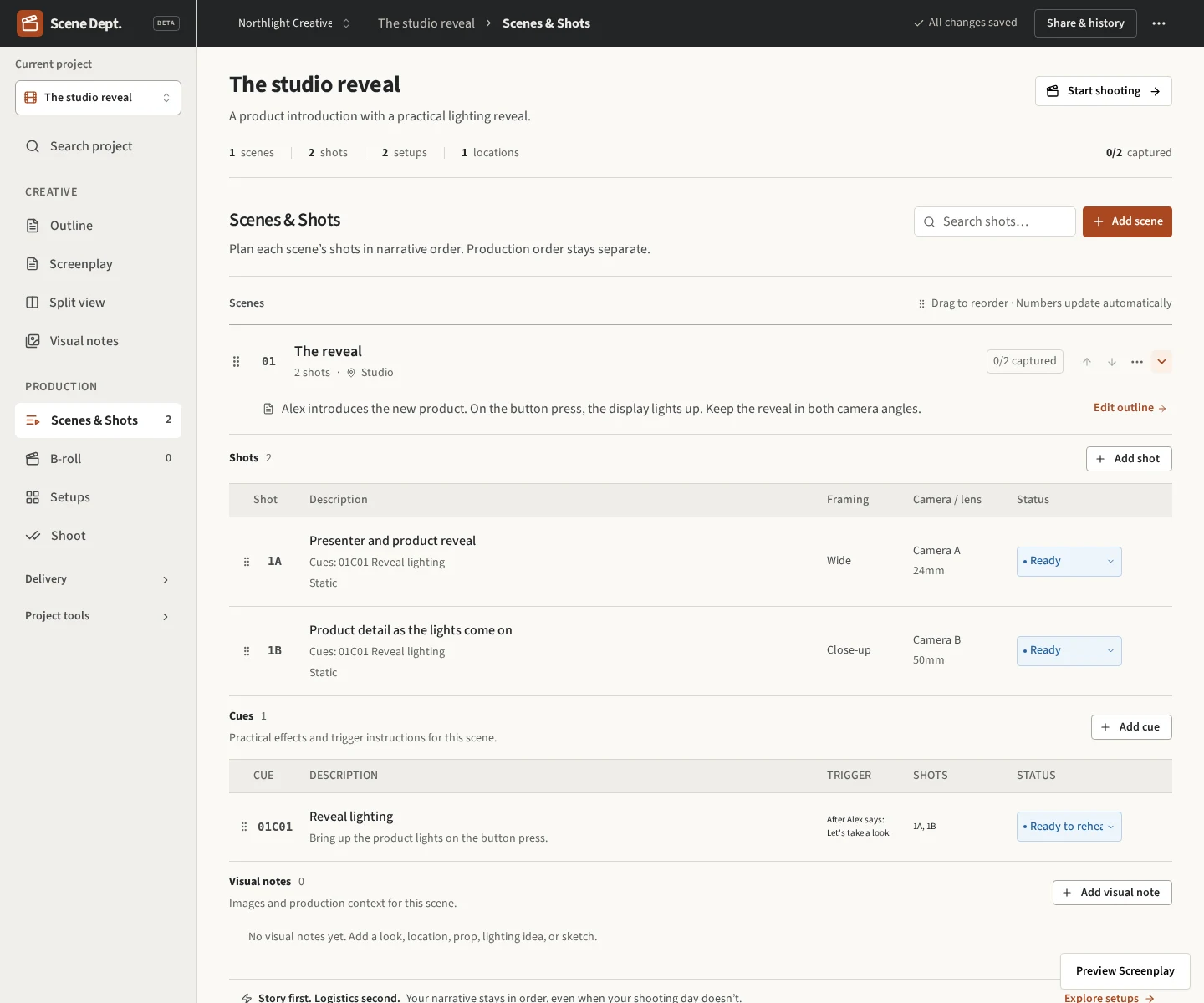
A cue describes a practical effect that needs to happen during filming: lighting, sound, a moving prop, an animatronic, or another physical action. It belongs to a scene and carries its instructions onto the shots that need it.
Cues currently support planning. They do not connect to hardware or play IgorBox shows.
Enable cues
For a new project, turn on Include practical effects. This also enables Scenes & Shots for authoring cues. Save your new-project settings if you want cues enabled for future projects too.
For an existing project, open Project settings → Workflow & tools and enable Practical effects cues. Scene cue editing is available in Outline, Screenplay, Split view, and Scenes & Shots. Enable one of those tools if your project only has a presenter script.
Add an effect to a scene
Expand an original scene and find Cues, beneath Shots. Select Add cue. The cue drawer uses the same layout as the shot drawer.
Enter:
- Cue title: a short name such as “Reveal lighting.”
- Practical effect: what should happen physically.
- When to trigger: the line, action, or operator instruction that starts it.
- Operator: who is responsible for the effect.
- Preparation / required gear: what must be ready before a take.
- Reset between takes: how to prepare for another attempt.
- Cue notes: additional context for the crew.
- Show reference: an optional show name or operator reference. This is plain text, not a live connection.
Drag the drawer's left edge to resize it up to 75% of the screen. Its width is remembered in your browser. On mobile, the drawer fills the screen. Changes save as you edit; Done closes the drawer.
Link the creative moment
Choose Linked screenplay passage to attach the cue to an action or dialogue element in its scene. Use View linked passage to return to that moment.
For an outline, enter an excerpt or expand Select an outline passage, highlight text, and choose Use selected text. The excerpt preserves that wording. If the outline changes so the excerpt no longer matches, the cue is flagged for review. A removed screenplay passage also produces a warning while preserving the cue's instructions.
Choose affected shots
Applies to controls where the instructions appear:
- All shots in this scene: includes existing and future shots in the scene.
- Shots linked to this screenplay passage: follows shots linked to the same action or dialogue. Use Additional shots to include other angles.
- Selected shots: choose exactly which shots need the effect.
Linking a screenplay passage does not change the Applies to choice automatically. Outline excerpts provide context; choose all or selected shots to assign their coverage. To exclude a camera angle from a passage cue, switch to Selected shots.
For multicamera coverage, include every angle that needs the effect. The cameras share one cue brief. B-roll stays independent and does not inherit scene cues in this version.
Use cues on set
Affected shots display the effect, trigger, operator, preparation, reset instructions, notes, and linked passage in their detail drawer, Shoot, and Batch shoots. They also appear in the printed and downloaded shot checklist.
For example, a reveal cue could say: “On the presenter's button press, bring up the product lights. Reset to the dim preset before the next take.” Assign it to the wide camera and product close-up, but leave it off a reaction pickup filmed separately.
The preparation statuses are Planned, Ready to rehearse, and Ready to shoot. They do not claim an effect has run. Marking a shot captured does not change cue readiness.
Reorder and remove cues
Drag the cue's handle to reorder it within the scene. Display labels such as 01C01 follow scene and cue order; shot assignments use stable identifiers.
Delete a cue from its drawer and confirm in the modal. This removes its instructions from affected shots without deleting the shots or screenplay. Scene references reuse the original scene rather than creating duplicate effects.
Next: share the production with a team, or read the Cues feature overview.
Add a visual note
Upload a lighting diagram, prop sketch, or other image from the cue drawer to keep it with the effect. Cue images remain attached to that cue. To display an image on specific shots in the project's Shoot checklist, attach it to the scene and link those shots instead. See Visual notes.