 Scene Dept.
Keep visual notes with the production
Upload images, link scene passages and shots, organize the gallery, and recover images when their original attachment is removed.
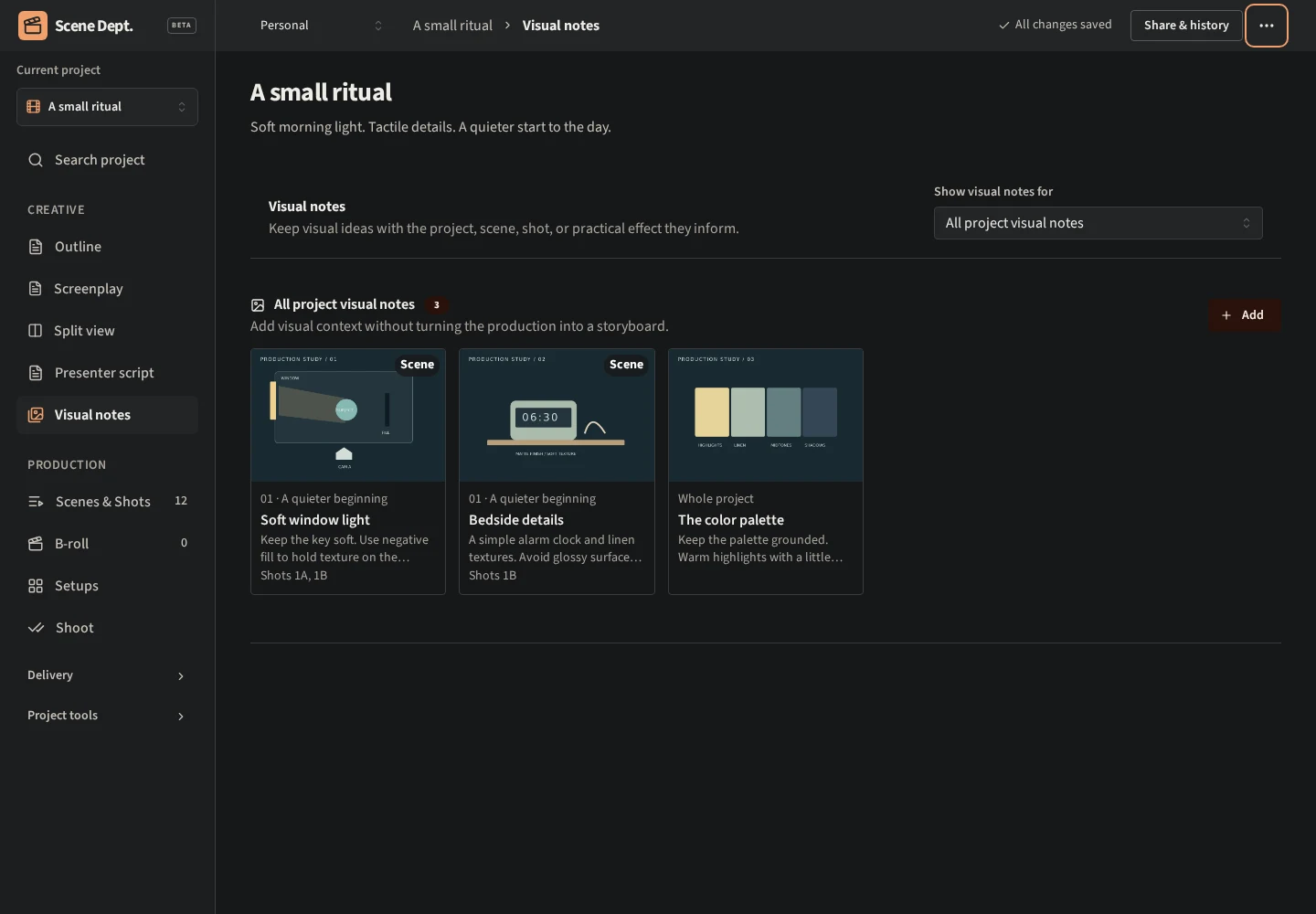
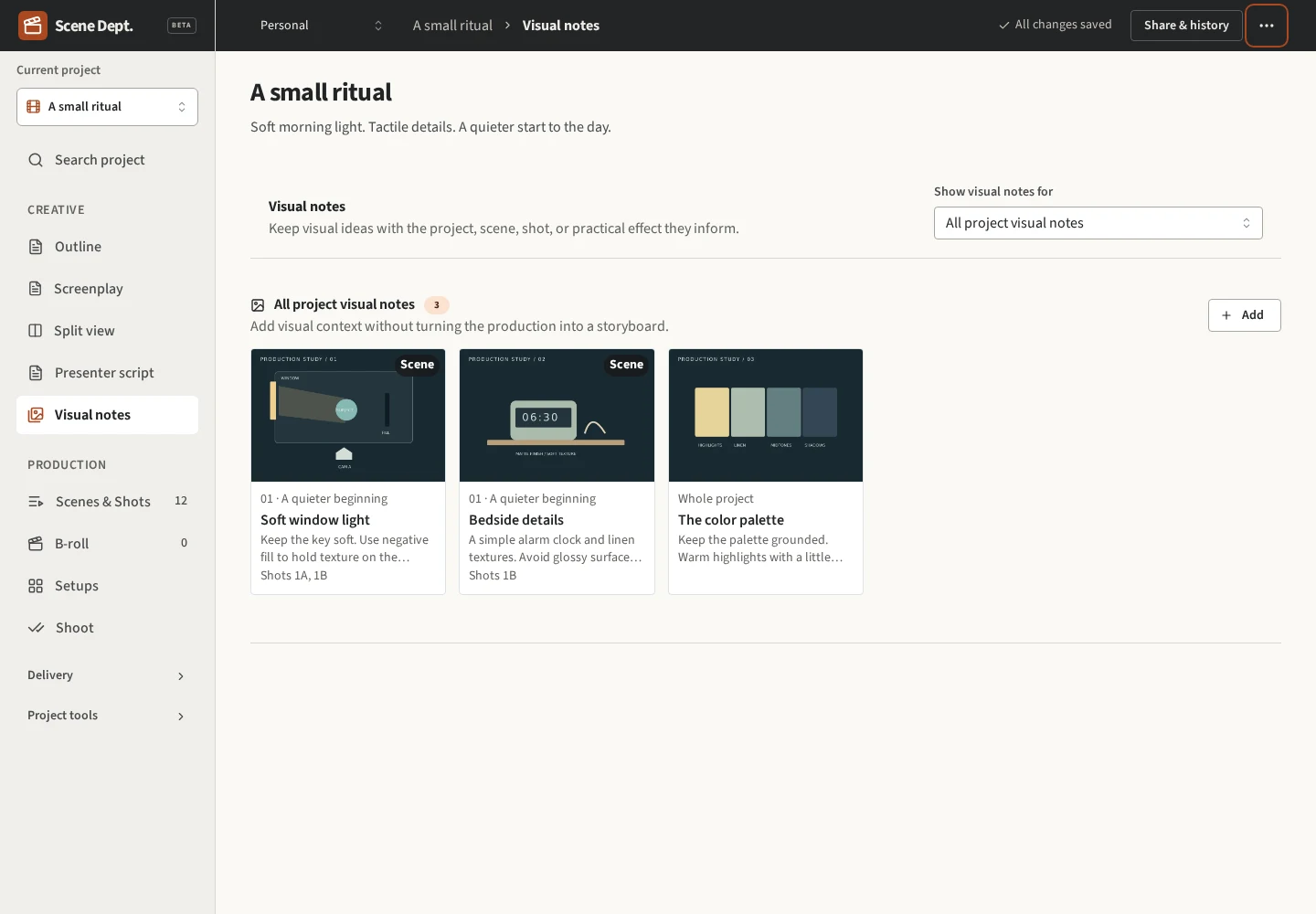
Visual notes are optional images with captions and production notes. Use them for location photos, lighting plans, prop sketches, composition ideas, or storyboard panels you already have. You can plan an entire production without adding images.
They are different from scene references, which reuse a scene in the narrative for a hook, flashback, or repeated moment.
Add an image
Open Visual notes in the project's Creative navigation. The gallery starts with All project visual notes. Uploading from this collection attaches the images to the whole project. Choose a scene, shot, or cue in Show visual notes for to upload directly to that attachment.
You can also use Add visual note in a scene's Visual notes section, or add images from a shot or cue drawer. Select one or several JPEG, PNG, or WebP files. The default beta limit is 12 MB per image, with a workspace storage allowance. Images must be no larger than 40 megapixels or 12,000 pixels on either side.
Wait for the preview to appear, then open the image. Add a Caption for the short idea and a Visual note description for the production intent. Select Save details. These fields are saved explicitly, rather than autosaved as you type. On desktop, drag the drawer's edge to resize it. Open original opens the full uploaded image separately.
Link a scene image to the coverage
An image attached to a scene can link to:
- An action or dialogue element using Linked screenplay passage.
- Wording from the outline using Outline excerpt. Expand Select an outline passage, select the text, and choose Use selected text, or enter the excerpt directly.
- One or more Linked shots in that scene.
The image appears on the selected shots. Linking a screenplay passage also includes shots connected to that passage. Appears on summarizes the affected shots. An outline excerpt preserves context but does not automatically assign shots.
For example, attach a lighting plan to a product-reveal scene. Select the wide and close-up shots, then describe the light direction and the highlight you want on the product. Both shots carry the same scene image into their details and the project's Shoot checklist.
A note attached directly to a cue stays with that cue. To show the same image on camera shots, attach it to the scene and select those shots.
Organize the gallery
Use the gallery filter to find images by project, scene, shot, or cue. To reorder, select a single attachment and drag an image's handle. The empty outlined space shows the destination. Release outside the gallery or press Escape to cancel. Focus a handle and use the left or right arrow keys for keyboard ordering.
An individual shot can display its own images plus linked scene images. Filter to the source scene to reorder its images; a mixed collection does not have one shared order.
Open an image and change Attached to to move it elsewhere in the same project. Save any current edits first. Moving an image clears its previous scene-passage and shot links, so set any new links after moving it.
Recover images and missing links
Deleting a scene, shot, or cue does not silently discard its images. Find them under Unassigned, open an image, and choose a new attachment. You can also remove images you no longer need.
If a linked shot or screenplay passage is deleted, its link is labeled as removed. Clear that link or choose a replacement. You can still edit the caption without repairing every old link first.
An incomplete upload has a Retry processing control. If the file did not reach storage, remove the incomplete entry and upload it again. Failed saves retain your draft and show an error.
Share with your crew or an assistant
Images follow project permissions, including team membership and individual project invitations. Viewers can see images; editors can upload and organize them. Storage is private, although a temporary signed image link can be opened by anyone holding it until it expires.
Authorized MCP connections can list, upload, finalize, edit, reassign, reorder, and remove visual notes. The assistant needs separate image-access capability to interpret an image and HTTP upload capability to send a file. Old connections retain their original permissions: reconnect and review the updated consent to enable the media tools. See MCP setup in the project navigation.
Current scope
Visual notes are available in the gallery, scenes, shot and cue details, and the project's Shoot checklist. They are not yet included in the combined batch-shoot checklist, PDF reports, or project JSON exports. Project JSON exports do not bundle image metadata or image files. There is no built-in image generation, storyboard editor, or AI helper in this release.
Removing a visual note asks for confirmation. It disappears from the project immediately and its stored files are queued for permanent deletion. Removing the entire project also queues its images for deletion.
Explore the Visual notes overview, plan practical effects, or share a team workspace.