 Scene Dept.
Create your first production
Choose a writing workflow, enable practical effects, save project defaults, and take your first scene through to capture.
Scene Dept. connects your creative plan to the footage you need. Start with a project, organize the story, add shots, then take the checklist into production.
1. Create a project
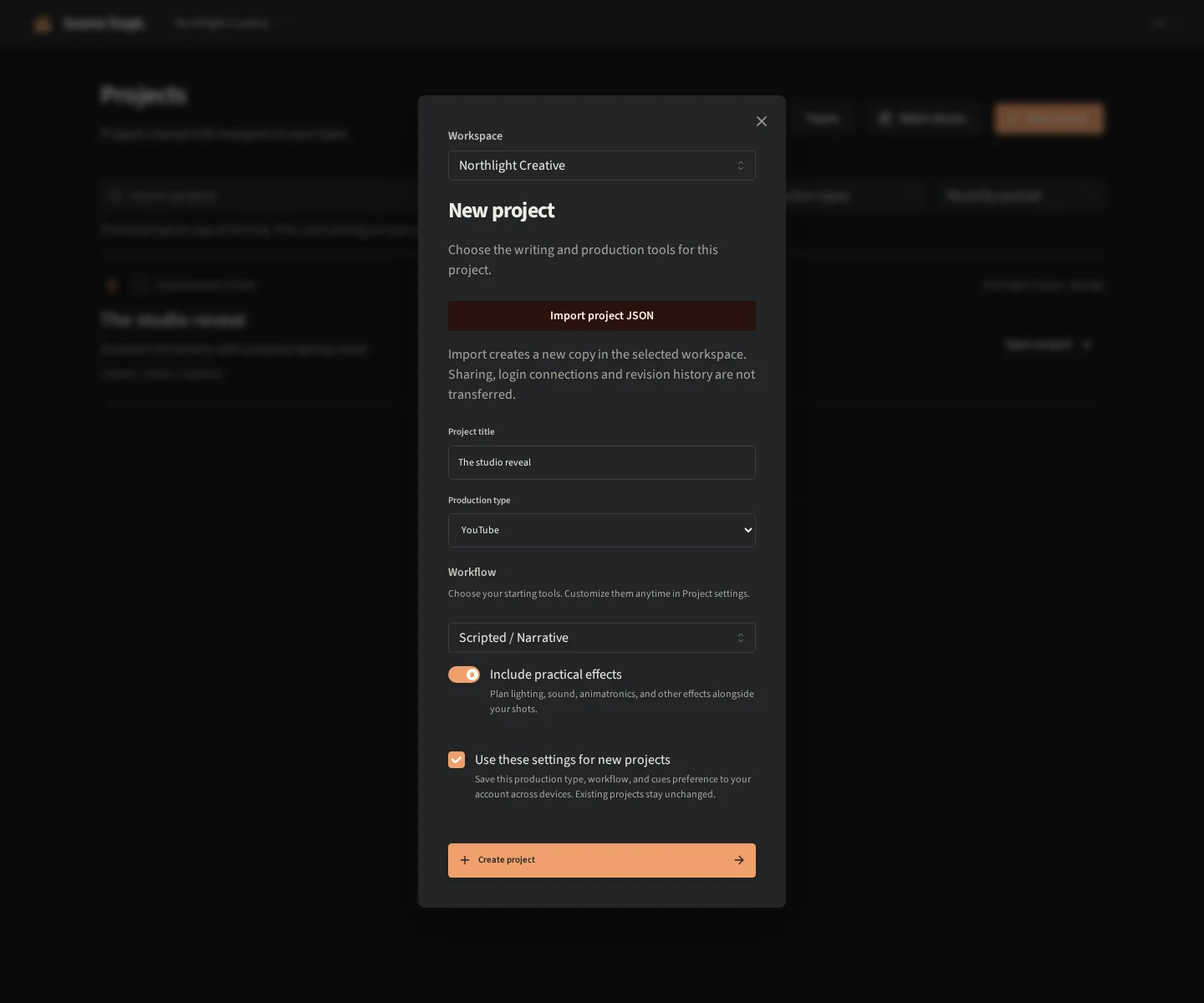
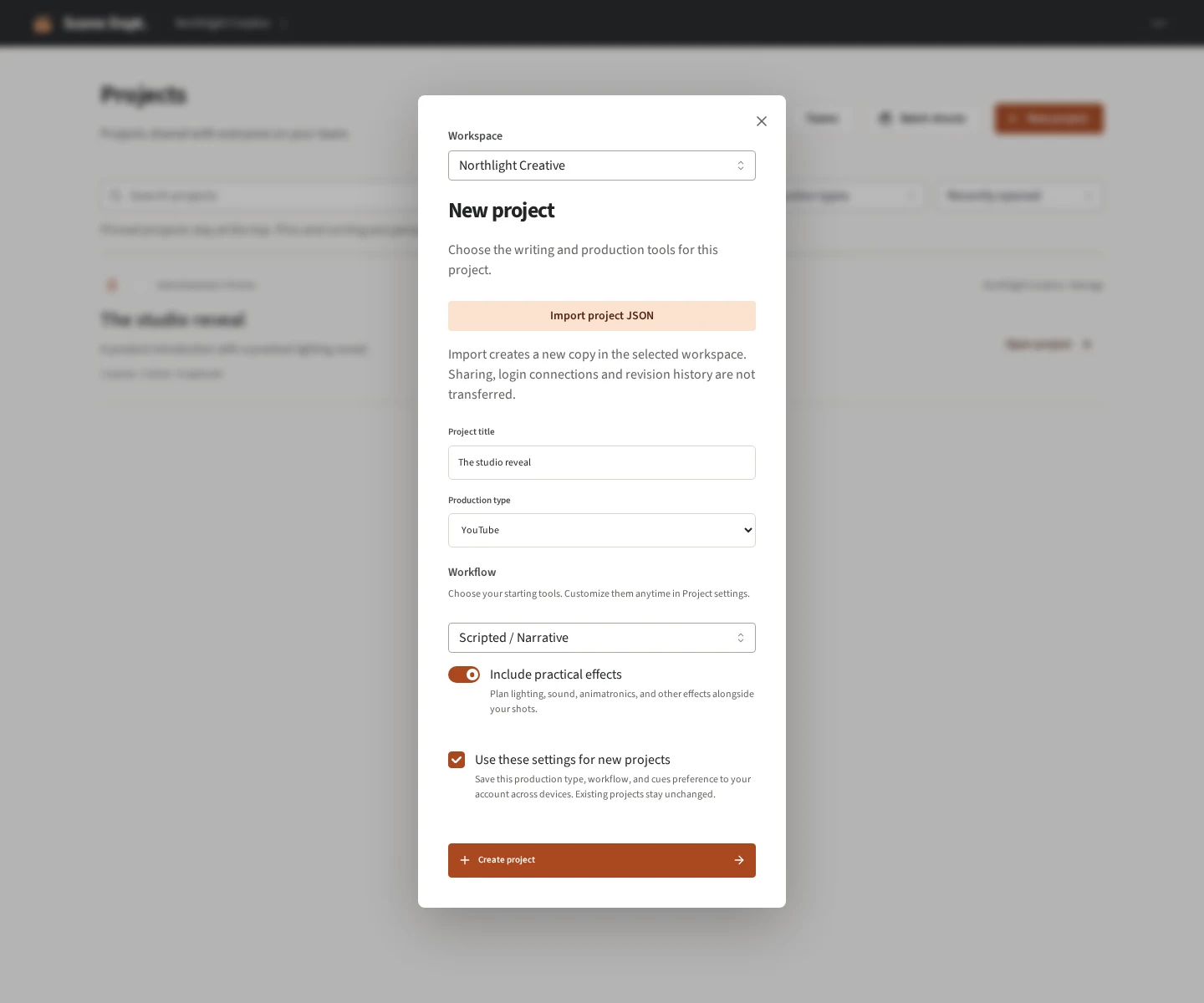
Open Projects and select New project or Create your first project. Choose Personal or a team workspace, enter a title, and choose a production type. Production type describes what you are making; the workflow selects your starting tools.
Scene Dept. is in public beta. Create a free account, verify your email, and sign in before creating projects. No invitation is required. These guides are public and do not require an account.
The public beta includes unlimited personal projects and one team with unlimited projects. A team supports up to 10 people with write access and unlimited viewers. Visual notes have no image-count limit. The default limits are 12 MB per image, 5 GB in a personal workspace, and 10 GB in a team workspace, along with request and abuse-prevention limits. Scene Dept. will not charge you unless you choose a future paid offering after seeing its price and terms.
Keep active projects easy to find
On Projects, pin the productions you want to keep at the top. Pins belong to your account and do not change a teammate's list. Recently opened is the default sort; you can also choose Last modified, Name, or Newest created. Pins and your sort choice follow you across devices. Opening a project updates your personal recency without changing its content or revision.
Projects you have not opened are ordered by creation date when available. Older projects without a recorded creation date appear after dated projects, with names breaking ties. Returning to a project last left on Project settings or MCP setup opens its workflow's default working view.
2. Choose how you want to write
- Outline-led: describe the flow, feel, talking points, and intended moments without scripting every line. Read about Outline-led production.
- Scripted / Narrative: write scenes, action, and dialogue, with screenplay formatting handled for you. Read about Scripted / Narrative production.
- Presenter-led: write a continuous spoken script with numbered paragraphs, track talking-head and voice-over takes, and plan supporting visuals. Read about Presenter-led production.
In Project settings, use Workflow & tools to customize the starting tools. Hiding a tool keeps its content. Outline and Screenplay share scenes, but editing one does not automatically rewrite the other. Desktop Split view lets you work with both.
3. Include practical effects if you need them
Enable Include practical effects when creating the project to add cue planning. You can use cues with any writing workflow. Including practical effects also enables Scenes & Shots, so you can author scene cues even in a Presenter-led production.
Choose Use these settings for new projects to save the production type, workflow, and cues preference to your account. They will be loaded when you next open the new-project form, including on another device. Existing projects and teammates' personal defaults stay unchanged. Leave the box unchecked to make a one-off choice without replacing your saved defaults.
See Practical effects cues for planning trigger instructions and assigning effects to camera shots.
4. Plan scenes and coverage
For an outline or screenplay, add a scene and describe the intended moment. Add shots for the coverage you need, including camera, lens, location, framing, subject, props, and gear. Click a shot's number, description, or edit arrow to open its drawer.
Scene order is narrative order. Reordering scenes renumbers them and their shots. A scene reference points to an existing scene for a hook, recap, or flashback without duplicating the footage you need to shoot.
Use B-roll for extra product details, hands, cutaways, and pickups that do not belong to a scene. Presenter-led projects can plan these supporting visuals after you have shaped the talking-head edit.
5. Group setups and capture footage
Open Setups to group compatible shots by location, camera, and lens without rearranging the story. In Shoot, filter the checklist and mark shots as captured. Affected shots carry their cue instructions with them.
Use Batch shoots to combine compatible setups across several projects. Team batch shoots use projects belonging to that team.
6. Hand off the production
Leave Notes for the editor on individual shots. Open Reports to preview, print, download, or email the screenplay, editor notes, or shot checklist. Screenplay exports include the title page and writer credits from Project settings.
For recurring collaboration, create a team so your crew can access shared projects without a separate invitation for every production.
Add visual context when it helps
Use Visual notes for location photos, lighting plans, prop sketches, or composition ideas. Attach images to the project, a scene, a shot, or a cue. Scene images can link to passages and selected shots so the context follows your coverage into the project's Shoot checklist. Images are optional; you do not need a storyboard to create shots.